Introduction:
Automatescale is a high-end digital platform that offers AI generated services to create outstanding websites, smart evergreen funnels, and well-developed custom tools to smarten and strengthen your online business. It offers solutions for any type of business providing a positive impact.
With the help of Automatescale surveys and forms you can capture quality leads, save time and take your business to the next level. Today we’ll talk about Automatecscale surveys and forms for lead generation. Stay with us to learn the most effortless way of building surveys and forms at Automatescale.
How to Build Surveys at Automatescale
Below we’ll share a step-by-step guide on how to build surveys at Automatescale by using your Automatescale account. You can create surveys and set up multi-step forms inside your account using get lead forms. If you already have an Automatescale account then let’s get started!
Enter your Automatescale account. Go to ‘Sites’.
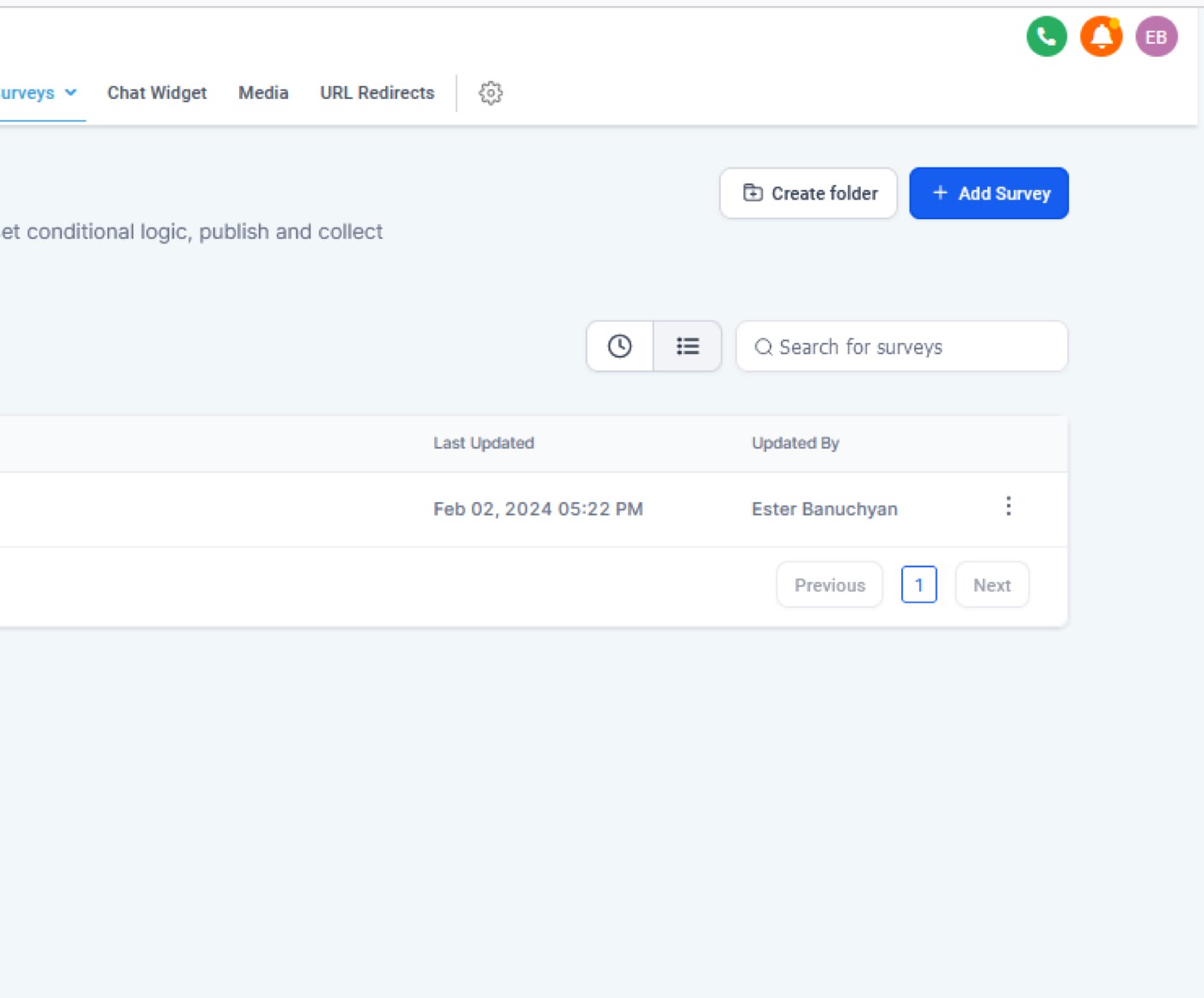
Click on ‘Surveys’ on the top of the page.
Click on ‘Builder’ under ‘Surveys’ and then click on ‘Create New Survey’.
Here you’ll see Slide 1. Go to Options on the right side of the page and create a Survey name.
Scroll down the options and activate the buttons ‘ One question at a time’, ‘Sticky contact’, ‘Progress bar’, ‘Disable Animation’.
Then you can go to the Fields to create Custom fields. Click on ‘Fields’ and then click on ‘Custom fields’.
Now just choose a question according to your preference, drag and drop it into the empty field.
Click on the yellow button - ‘Add Custom Field’.
You see a “New Custom Field’. Choose one of the multi-choice buttons inside. Fill in the required fields with the necessary information.
Click on ‘Save’.
Note: You can add several custom fields with questions and answers depending on your marketing needs. It’s going to look like a quiz.
How to Add Surveys to your Funnel
When building a survey, make sure it’s logical and an easy-to-use one that’s able to capture quality leads. Once you are done with your survey building, you can add it to your funnel. Here is how to do it.
Go to ‘Funnels’ on the top of the homepage of your Automatescale account. You can open a new window for Funnels.
Click on ‘Quiz page’ and then click on ‘Edit’, ‘Edit page’.
Here you can preview the survey, add elements. You can make changes on the fields, style, and options. Then save it and refresh the page.
You can also make changes on the ‘Section Settings’ on the left of the page to get the look and design you want. Click on ‘General’ or ‘Advanced’ settings and add elements according to your preference.
How to Build Forms
The same way as you build surveys, you can create forms.
Click on ‘Forms’ under the ‘Sites’ category on the top of the page of your Automatescale account.
Click on ‘Builder’ and click on ‘New Form’.
Go to ‘Options’ and Create a form name on the right side of the page.
Then make the desired changes on the ‘Styles’ and ‘Fields’.
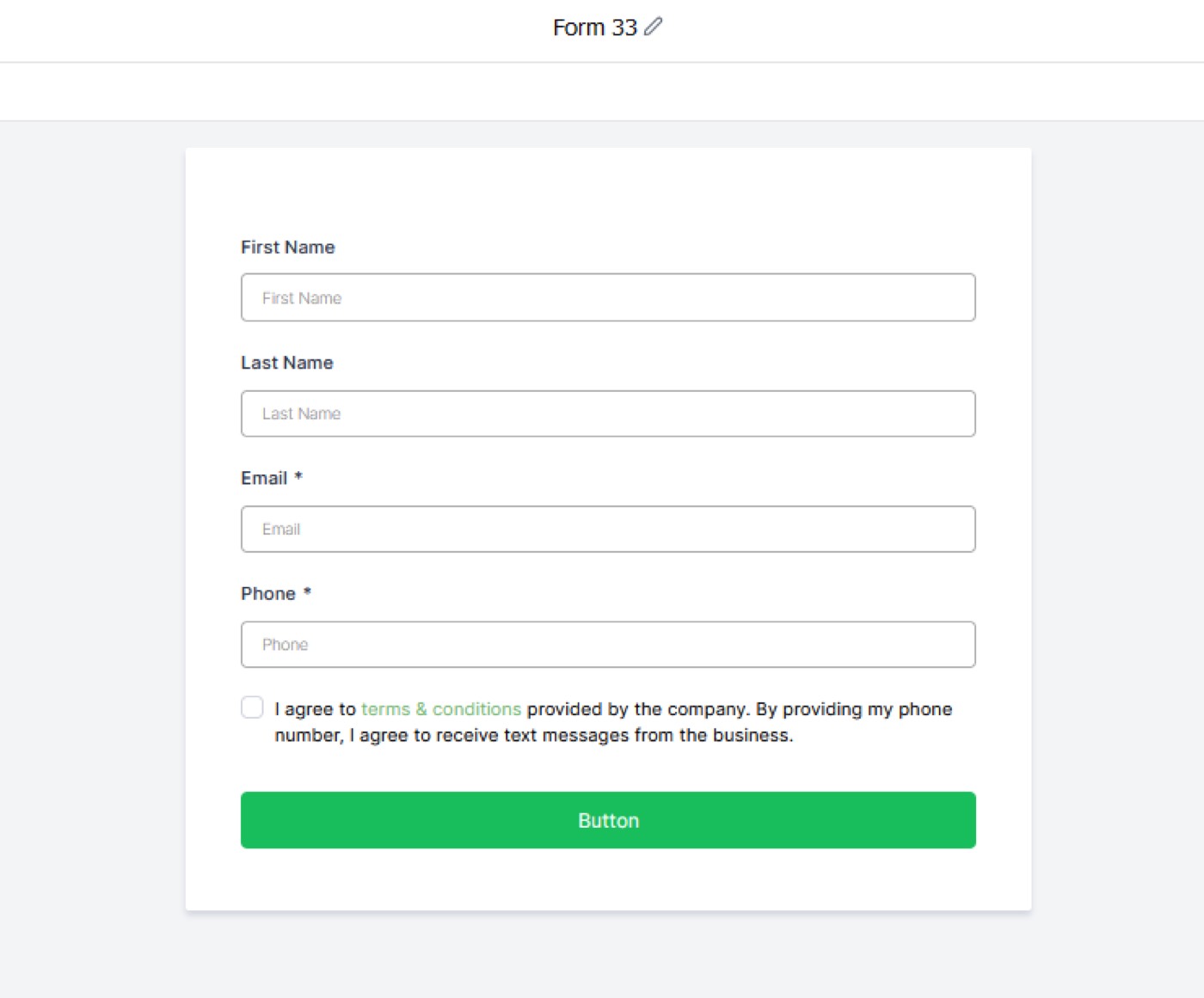
Drag and drop fields into the empty form: first name, last name, email, etc. Then make it ‘required’.
Add a ‘Button’ at the end of the form and name it ‘Submit’ or whatever you think of.
You can activate the ‘full width’ for the button.
Then drag in the Custom HTML below the ‘Button’.
Click on ‘Edit Script’. Then fill in the Custom HTML box. You can input your text colors, make the final changes and click on ‘Save’.
Finish this step with ‘Save forms’.
Results Page
You can check the final result on the ‘Results page’ under the ‘Funnels’ category. There you can edit the page, add elements, select forms, and click on preview to see how it looks. Then save the result and refresh the page to see the final look.
Thank You Page
Go to ‘Thank you page’ under the ‘Funnels’ category.
Click on ‘Edit’, ‘Edit page’.
Add a personalization tag to your Thank you field
Click on ‘Save’ on the top right of the page.
Setting up Segmentation in a Workflow when a Lead Comes in
You can set up some kind of segmentation in a workflow when a lead comes in. You can bring all the leads into Automatescale and then segment out rather than disqualifying on the survey.
This means that you can get a little more data and you can send the users some other products if you think they are not interested in your main product that you are selling. This way you can offer some other products that may interest users. So, to do that, you need to set a workflow. Let’s see how you can do that.
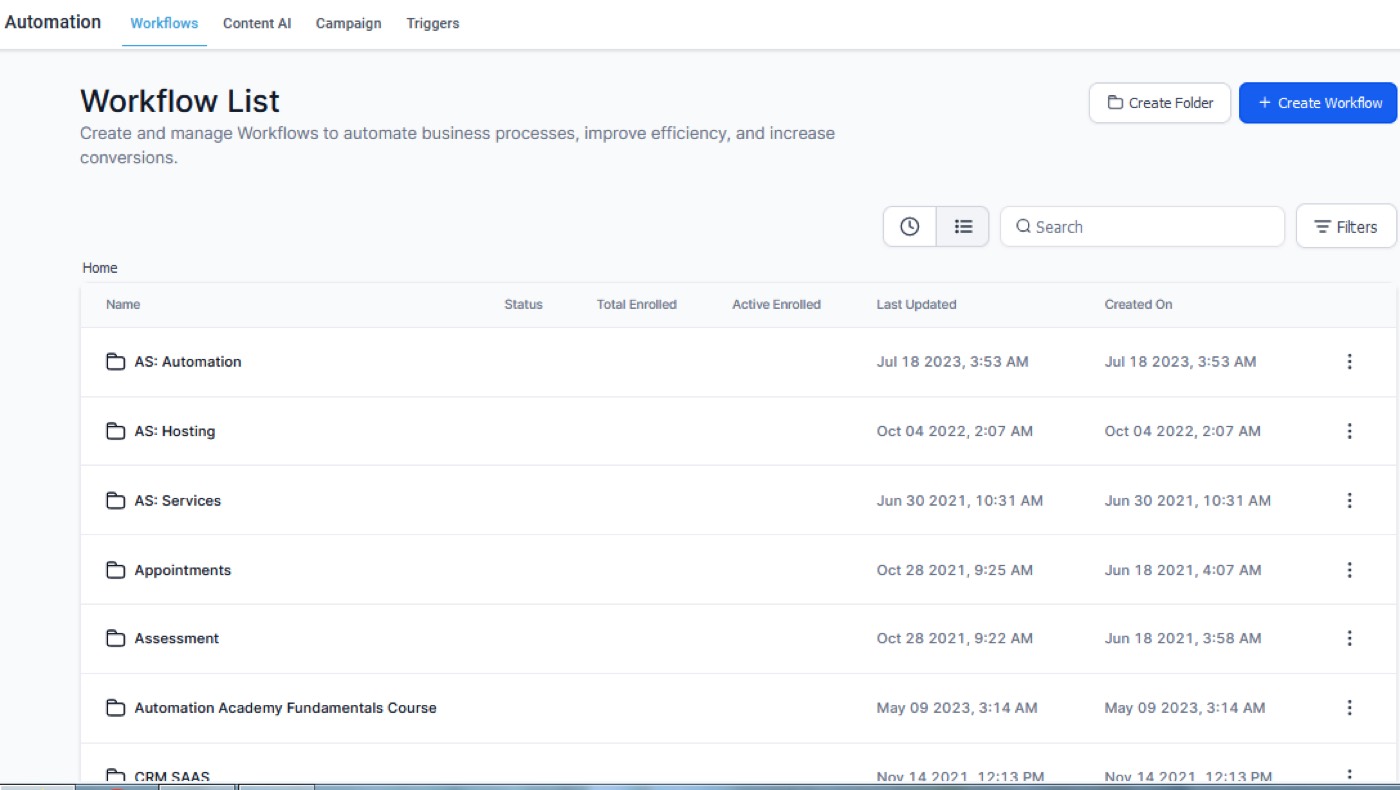
Go to ‘Automation’ on the homepage of your Automatescale account.
Click on ‘Workflows’.
Click on ‘Survey Segmentation’
Here you see ‘Actions’, ‘Settings’, ‘History’, ‘Status’.
Go to ‘Actions’ and make changes like adding elements or editing the fields. This way you create the segments.
Once you are done with editing, go back to workflow and test the final look.
Click on ‘Sites’ and then click on ‘Results page’.
Click on ‘Edit’ and check how the page looks like.
Edit, test the buttons, make any changes you want and save it.
FAQs
What is a lead generation survey?
Lead generation surveys are marketing tools that allow businesses to better understand their customer needs, interests, and preferences. Thanks to lead generation surveys you can collect enough data and info about how to manage your business more productively to satisfy your current customers and future customers.
Why use surveys and multi step forms in Automatescale?
Surveys and multi-step forms come for help when you want to break down your Automatescale forms into 2-4 forms. It leads to a more user-friendly and eye-catching form providing higher quality and better number of leads.
Can I create a lead survey or multi step form in Automatescale?
The answer is - of course you can. Automatescale surveys and form builders give you the opportunity to create multi-step forms or lead quizzes. You should just note that there are limitations for conversion rates. However, if conversion rates don't matter, you can easily get what you need with the current service of Automatescale survey and form builders.
★ Want this built for you? AutomateScale deploys the AI agent layer, funnels, and automations behind this — for agencies, SaaS founders, and coaches. Apply for a strategy call or subscribe to The Scale Brief.